Backing Up Cloud-Only Files with Arq
If you use iCloud Drive, OneDrive, Dropbox, Google Drive, or a similar cloud-storage service, you’ve probably noticed that some of your files have a small cloud badge on the icon. Those are dataless files (also called cloud-only files or placeholders) — files whose metadata lives on your local disk, but whose contents live only in the cloud. Your cloud provider downloads the contents on demand when you open the file, and may evict it again later to free up disk space.
Backing up dataless files is tricky, because Arq’s usual approach — taking a point-in-time snapshot of the disk and reading from the snapshot — doesn’t work for them. The snapshot captures the placeholder, but not the file’s contents. And reading from inside a snapshot doesn’t trigger the cloud provider to download the contents; only reading from the live filesystem does.
Arq has handled this on macOS for a while. With the latest release, Arq handles it on Windows too.
Three choices for each backup plan
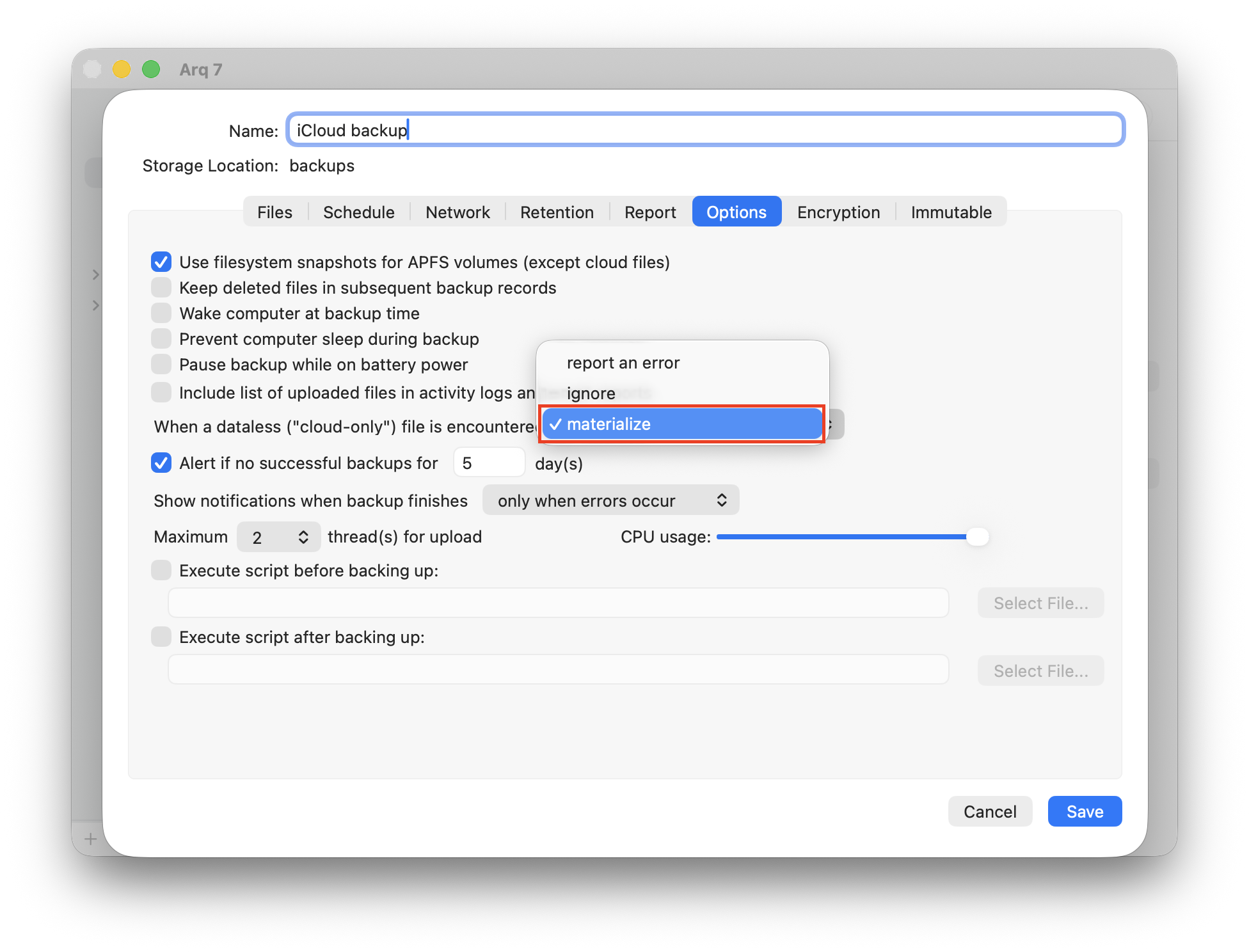
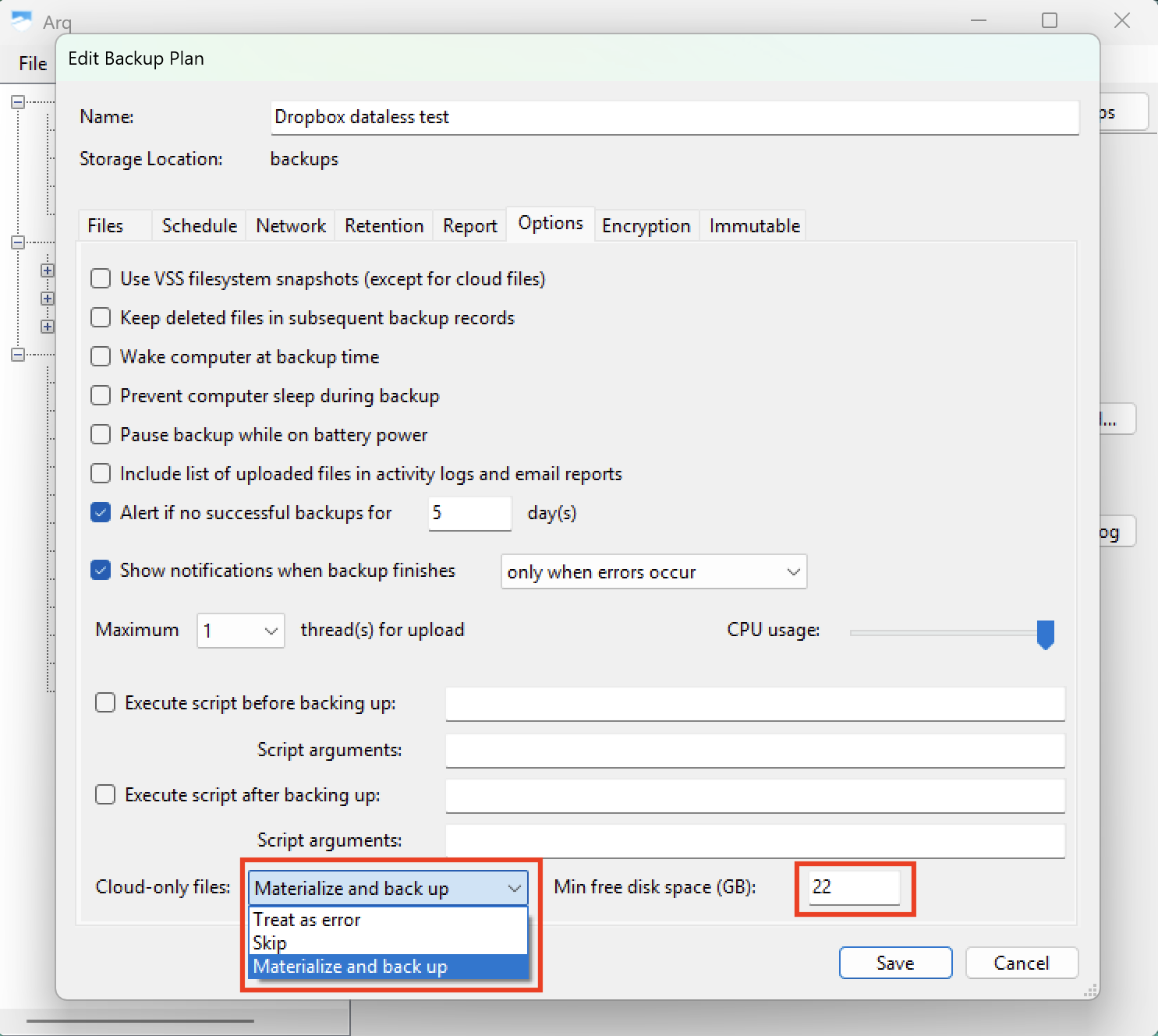
Open your backup plan’s Options and find the Dataless files menu (called Cloud-only files on Windows). You’ll see three options:
- Treat as error (the default) — Arq logs an error for each dataless file it finds and doesn’t back up the file. Use this when you want to know exactly which files weren’t backed up.
- Skip — Arq silently skips dataless files. Other files in the same plan back up normally.
- Materialize and back up — Arq reads each dataless file live, which causes the cloud provider to download its contents. Arq then backs up the downloaded contents. On macOS, Arq also tells the system to re-evict the file after backing it up, so the disk space the user freed up stays freed up.
How materialized files get re-evicted
On macOS, Arq tracks every dataless file it materializes during a backup and tells macOS to evict each one after backing it up — telling FileProvider to discard the local contents and return the file to its cloud-only state.
On Windows there’s no API for Arq to do this directly, so re-eviction happens through your sync engine’s own background cleanup:
- OneDrive — In Settings → System → Storage → Storage Sense, enable “Content will become online-only if not opened for more than [N] days” and pick a number of days.
- Dropbox — In Dropbox preferences, go to Sync and enable “Save hard drive space automatically”.
- Manual — You can always right-click any file in File Explorer and choose “Free up space” to immediately return it to its cloud-only state.
Only changed files are downloaded
Materializing a dataless file is expensive — it has to be downloaded from the cloud. To minimize that cost, Arq compares each dataless file’s metadata (size, modification date, etc.) against the previous backup record before deciding whether to materialize it. If the file hasn’t changed since the last backup, Arq reuses the previously backed-up content and skips materialization entirely.
So the first backup of a folder full of dataless files is slow, but subsequent backups touch only the files you’ve actually modified.
One requirement: the user has to be logged in
Cloud providers will only download content on behalf of a process running inside the user’s session. On macOS that’s bird (for iCloud Drive) and fileproviderd (for third-party providers); on Windows it’s the OneDrive, Dropbox, Google Drive, or iCloud sync engine itself. If no user is logged in — for example, the machine is sitting at the login window overnight — the download never starts and Arq can’t back up the file.
If your dataless files matter, make sure you’re logged in when the backup runs.
Note: More about how Arq handles dataless files is in the Arq help.